Chapter 7: 設定
言語切替、ライセンス、外部リンク
設定画面の概要
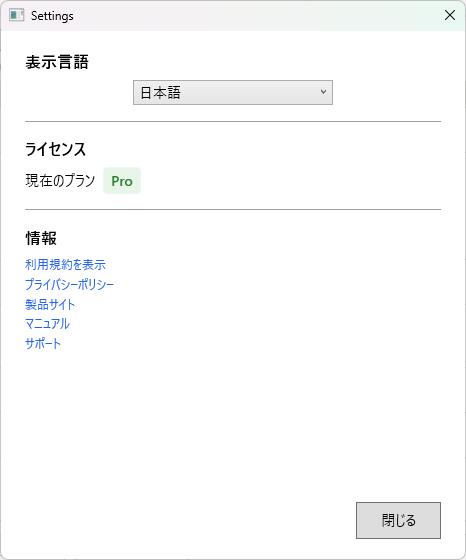
設定画面では、アプリケーションの動作に関する各種設定を管理できます。ナビゲーションバーの「設定」アイコンからアクセスします。
言語の切替
SecureNavigator は日本語と英語の2言語に対応しています。設定画面の言語セクションで表示言語を切り替えることができます。
言語を変更すると、以下が即座に切り替わります。
- アプリケーション全体の UI テキスト
- ヒアリング画面の質問文と回答選択肢
- 結果画面の表示内容
- レポートの出力言語
言語の切替は診断データに影響しません。言語を変更しても、回答済みのデータや診断結果はそのまま保持されます。
ライセンス表示
設定画面のライセンスセクションでは、現在のエディション(Free または Pro)とライセンスの状態を確認できます。
| 表示項目 | 内容 |
|---|---|
| エディション | Free または Pro |
| ライセンス状態 | 有効、期限切れ、未認証など |
| アプリバージョン | インストールされている SecureNavigator のバージョン番号 |
Pro 版へのアップグレードは Microsoft Store から行います。詳しくは Free と Pro の違い を参照してください。
外部リンク
設定画面には以下の外部ページへのリンクが用意されています。
- プライバシーポリシー: データの取り扱いに関する方針を確認できます。
- 利用規約: 利用条件と免責事項を確認できます。
- 製品サイト: SecureNavigator の製品情報ページを開きます。
- サポート: お問い合わせ方法と FAQ を確認できます。
設定画面の情報セクションで、現在のアプリバージョンを確認できます。
Chapter 7: Settings
Language switching, license, external links
Settings Screen Overview
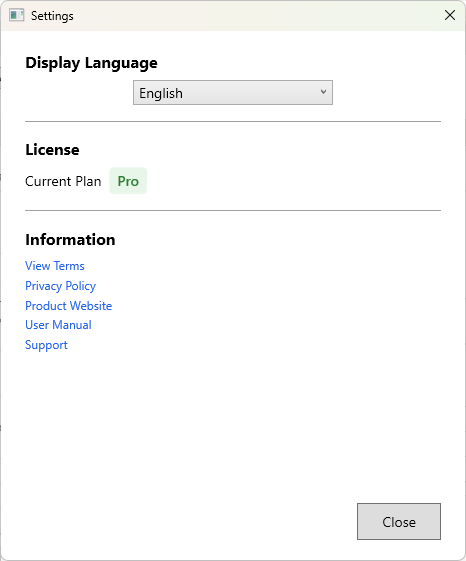
The Settings screen lets you manage various application settings. Access it from the "Settings" icon in the navigation bar.
Language Switching
SecureNavigator supports two languages: Japanese and English. You can switch the display language in the language section of the Settings screen.
Changing the language immediately updates:
- All application UI text
- Hearing screen question text and answer options
- Results screen content
- Report output language
Language switching does not affect assessment data. Your answered data and assessment results are preserved when changing languages.
License Display
The license section of the Settings screen shows your current edition (Free or Pro) and license status.
| Item | Description |
|---|---|
| Edition | Free or Pro |
| License Status | Active, Expired, Not Authenticated, etc. |
| App Version | The installed SecureNavigator version number |
Upgrading to Pro is done through the Microsoft Store. See Free vs Pro Features for details.
External Links
The Settings screen provides links to the following external pages:
- Privacy Policy: Review how your data is handled.
- Terms of Use: Review usage terms and disclaimers.
- Product Site: Opens the SecureNavigator product information page.
- Support: Access contact information and FAQ.
You can check the current app version in the Information section of the Settings screen.